I would have guessed that “themes” would do it, but apparently not. Is there some way to differentiate different sensors (water leak, open window or door, etc?)
You can do it with Themes by creating different named styles and then editing your desired tiles to apply the named style to each tile.
It is not applied by tile type, thing type, or similar if that’s what you were thinking. If no named style is explicitly applied to a tile, then it uses the ‘Default’ and ‘Active’ named styles. But if you explicitly apply a particular named style to a particular tile, then it uses that style.
Alternatively, if you just have a one-off tile that you want to have different colors, you can use Custom ‘inline’ Styles – when directly editing a tile you can either choose a named style at the top or check the box for Custom Style which lets you quickly create a one-off style.
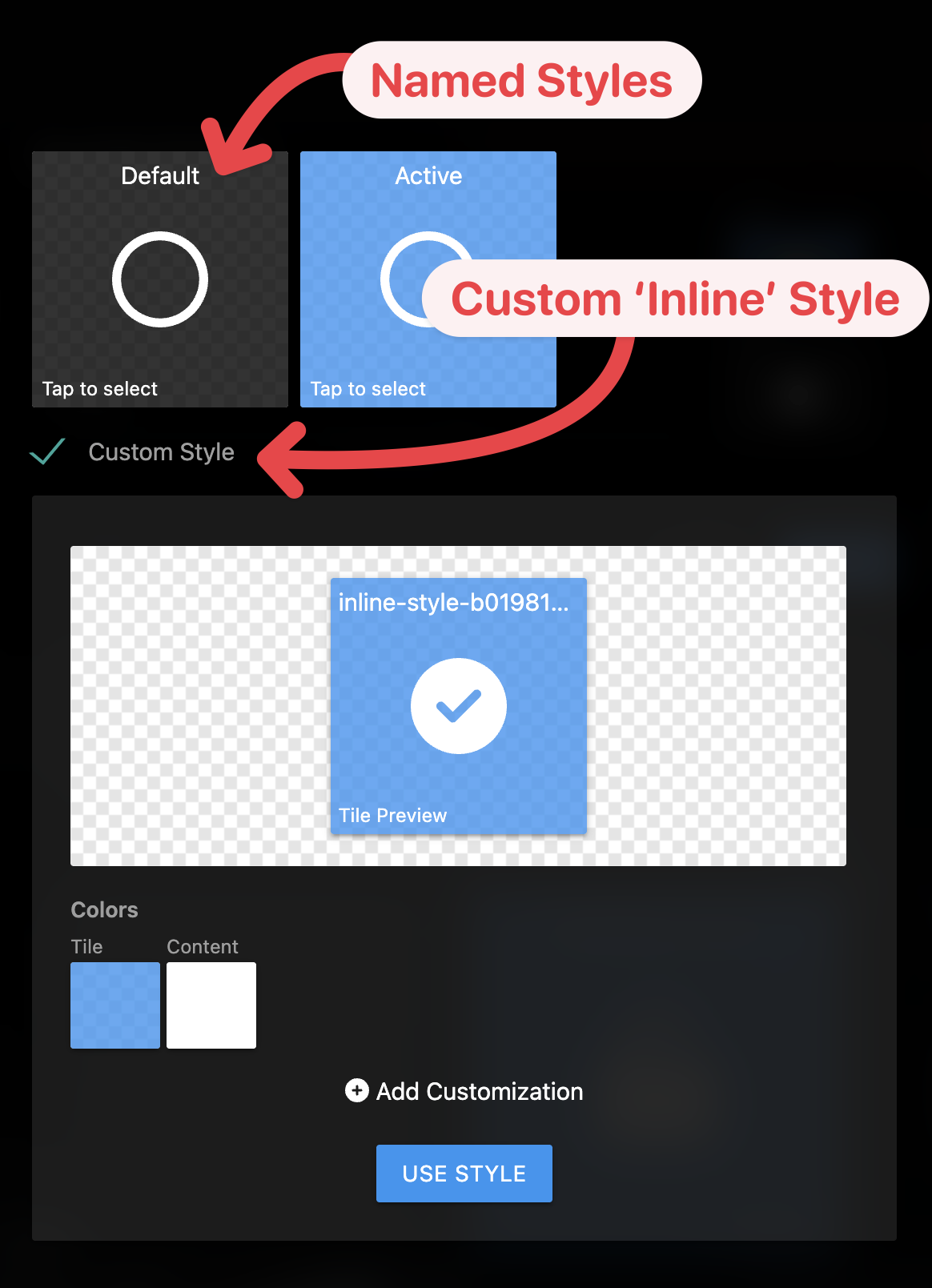
Of course if you are going to use the same style across multiple tiles, it’s much more efficient to create a named style in a Theme and then re-use it across multiple tiles. That way you can tweak the named style in one place and it will automatically update everywhere. And if you want to create multiple themes that use the same names, then you can switch the Theme and all of the tiles that reference the same ‘named style’ will automatically update to the new style definition in the new Theme.
Thanks. I have been able to tweak individual tiles, but don’t see an option to create a “style”, as you put it, which I could then apply to related tiles.
Here’s an end-to-end demonstration of what I’m referring to.
There’s also a bunch of great help articles about Themes and Styles that I would recommend taking a read through:
Thanks very much for the video. Unfortunately it seems rather complicated. I was able to create a style but then wasn’t able to find a way to use it. I literally clicked on each tile, edited style, chose colors, and applied them. Not at all what I would have expected.
New question: I imported from Smartthings, and my garage door correctly shows on sharptools as open or closed. But I have a main water valve which should be the same (open or closed). It currently says Open (which is correct) and in the bottom left corner says “Open. Close”. Is there some way to configure it so that the “Open Close” options disappear and only the status appears on the tile (and as the status changes, the tile changes)?
The Open and Close commands in the valve footer aren’t configurable.
You can use a Hero Attribute tile if you just wanted to display the Icon as the Primary content and optionally display the the opened or closed text in the footer of the tile.
Alternatively, you can use a Super Tile if you want more control over the layout of the tile or want to mix and match data from different sources. See this tile comparison article for an overview and explanation of some of those advanced tile types.
Judging from the hero attribute link, that isn’t what I am looking for. As with the garage, I am looking to create a tile that says Open (when the valve is open) and Closed (when it is closed). Is that not possible?
The Hero Attribute can do exactly that.
What have you tried? Maybe sharing a screenshot of your Hero Attribute configuration and the resulting tile along with a description of what you want to be different would help.
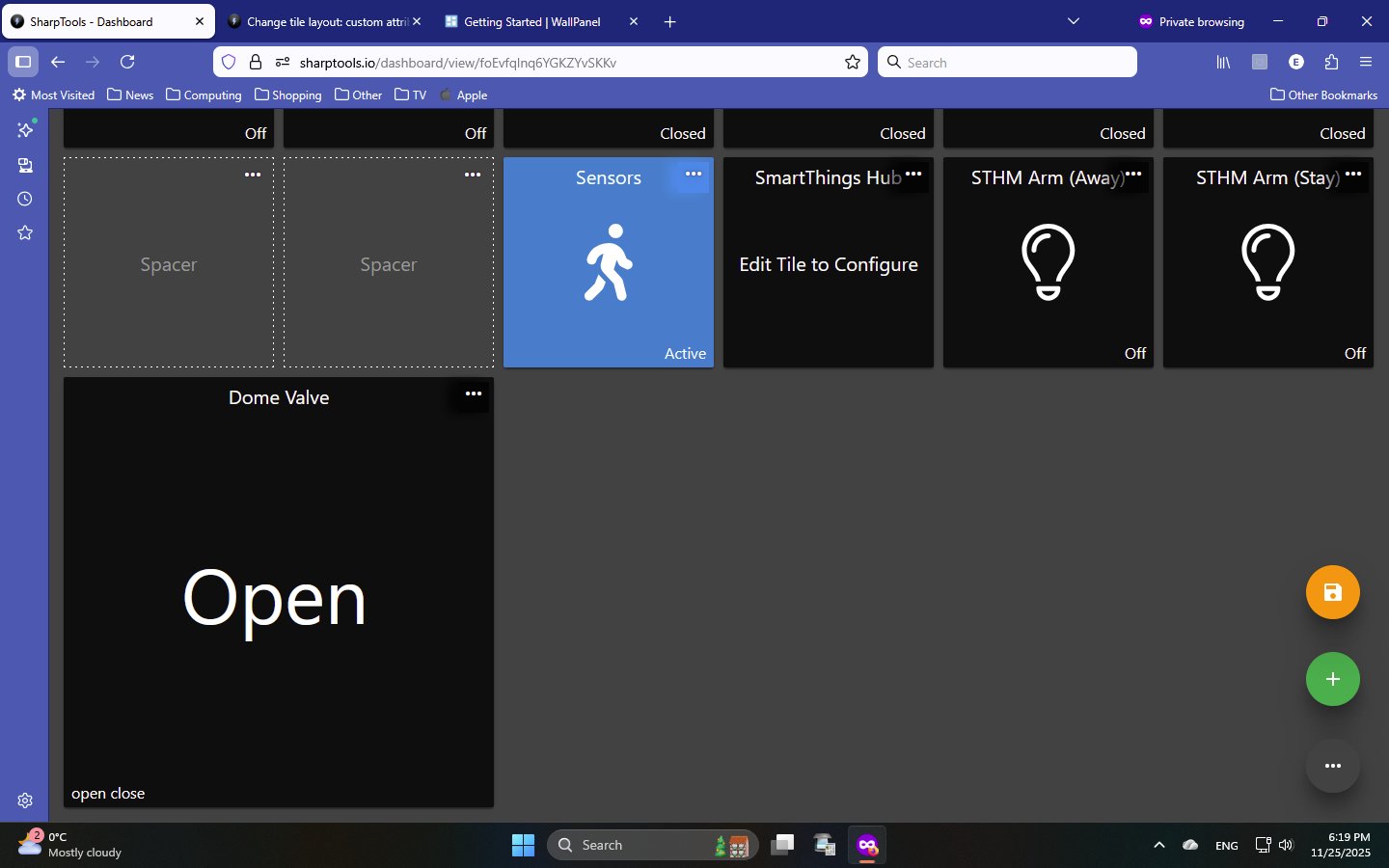
That’s a screenshot of the resulting tile, but I’m interested in seeing how you actually configured the Hero Attribute tile. It looks like maybe the valve was configured as the Primary attribute.
If you only want an icon displayed as the main content, and the open or closed status displayed in the footer, I would configure the tile like:
 Icon → configure the icon states
- Make sure to use lowercase
openandclosed(or whatever the actual values are)
- Make sure to use lowercase
- Primary:
none - Secondary:
valve
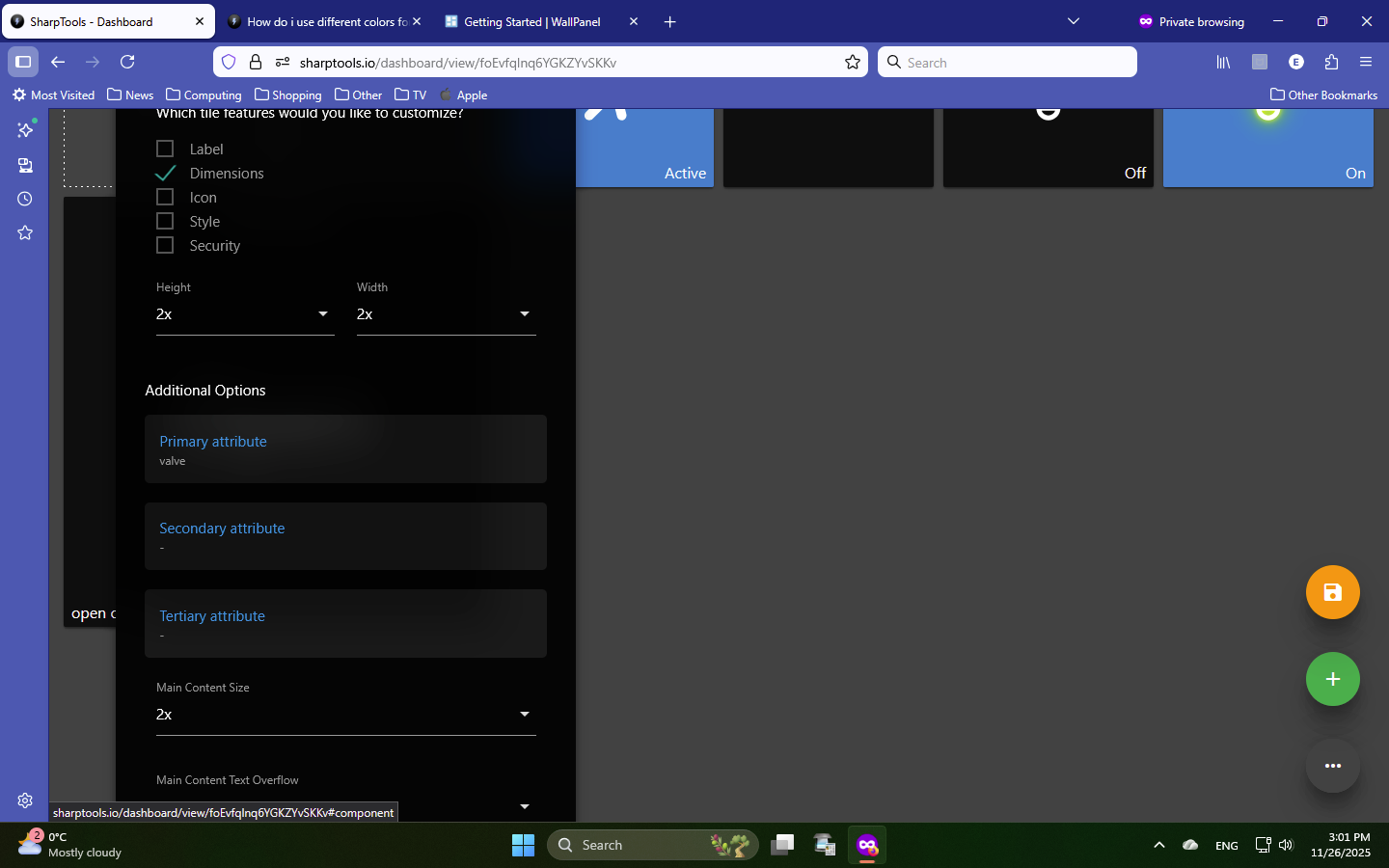
Thanks for the confirmation. As noted in my reply that how I figured it was configured based on the displayed tile.
I shared tips how to configure it to show an icon as the main content and the valve open/close wording in the footer in my reply above.
Way over my head, sorry.
This topic was automatically closed 10 days after the last reply. New replies are no longer allowed.