We’re excited to release a new feature that makes it easier to reuse the same Style or Icon ‘State Mapping’ configurations across multiple tiles and dashboards.
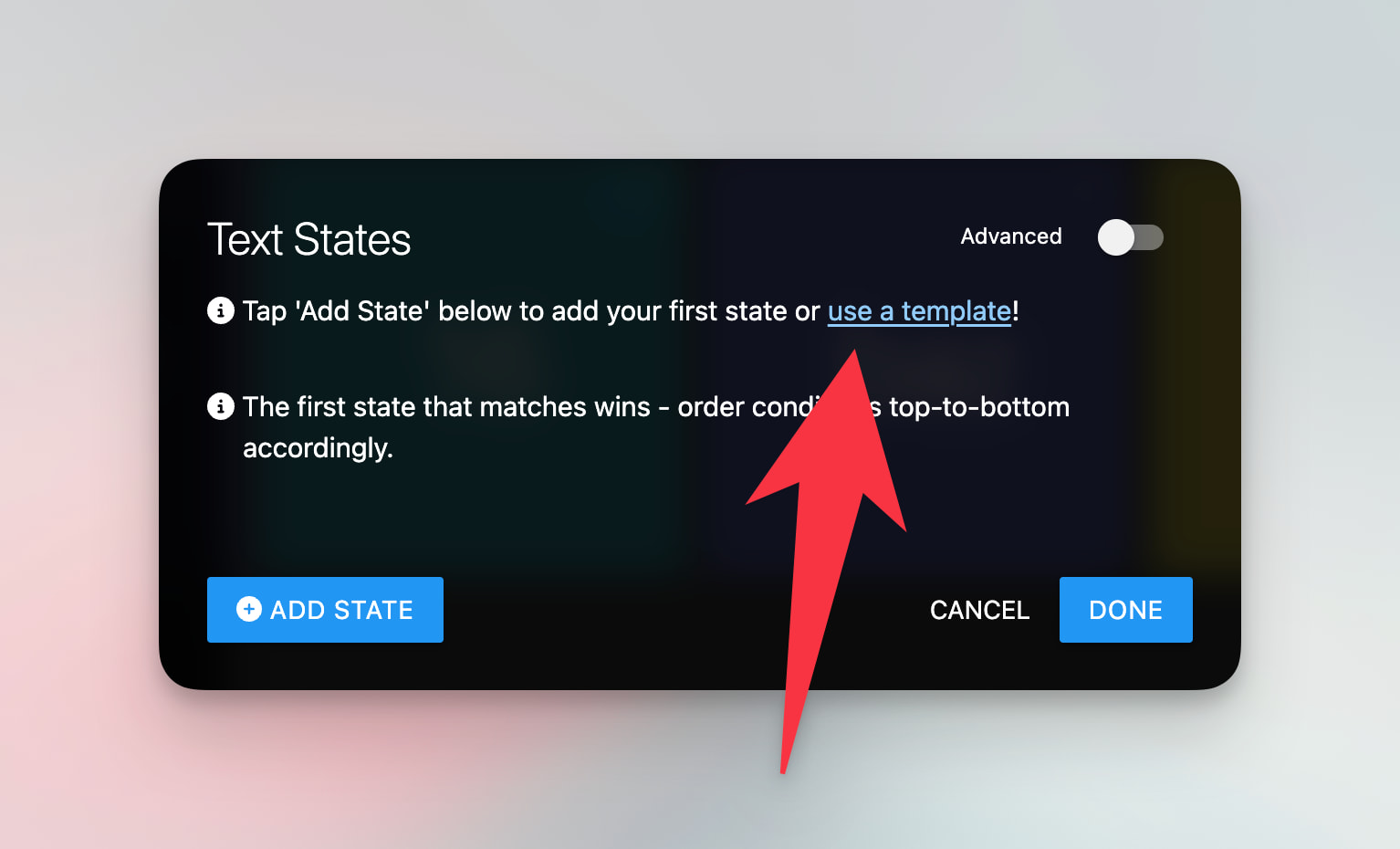
This is especially helpful for tiles where you have several custom states, like:
-
Temperature tiles with color ranges
-
Hero Attribute tiles with several visual states
-
Variable tiles where you want consistent styling across dashboards
-
Super Tile items like state-mapped icons
-
Super Tile entity-aware style mappings
Instead of manually recreating the same thresholds and configurations for styles and icons on each tile, you can now save a State Mapping as a reusable template and apply it to other compatible tiles.
Why This Helps
A common request has been:
“I want all of my temperature tiles to use the same colors, but I keep picking slightly different shades each time.”
State Mapping Templates are designed to help with that. For example, you can create one “Temperature Colors” template with rules like:
-
Below 60: blue
-
60-75: green
-
Above 75: red
Then reuse that same mapping on other temperature tiles.
Getting Started
The easiest way to start is from an existing tile:
-
Open a dashboard in edit mode.
-
Edit a tile that supports dynamic State Mappings like a temperature, Hero Attribute, or variable tile.
-
Open the Style State Mapping editor.
-
Add or adjust your states the way you want them.
-
Toggle on Advanced.
-
Choose Save as template.
-
Give the template a name, like “Temperature Colors”.
Now you can reuse that template elsewhere.
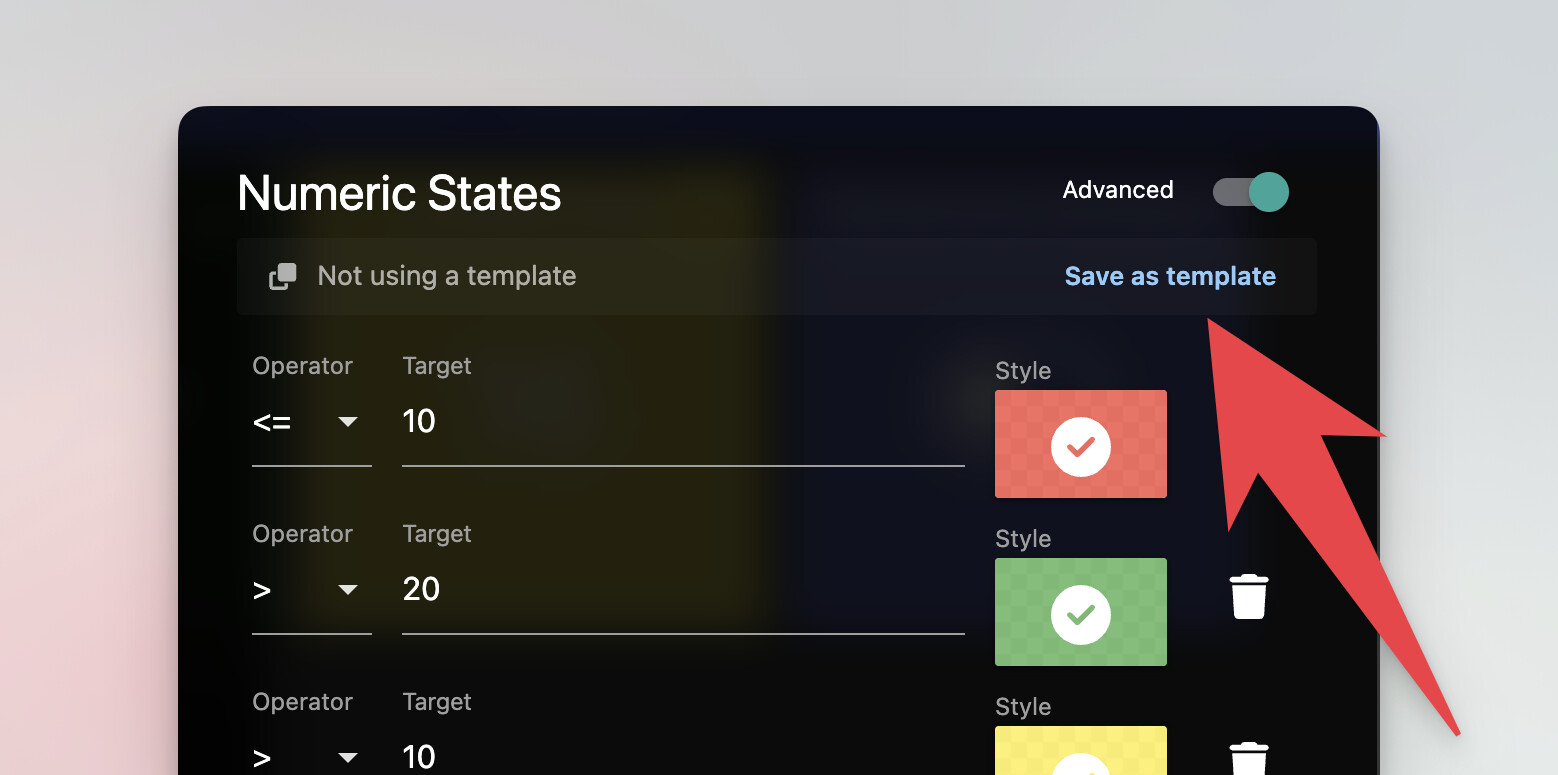
To apply it to another tile:
-
Edit another compatible tile.
-
Open its State Mapping editor.
-
If the tile has no mappings yet, you may see an option to “use a template”.
-
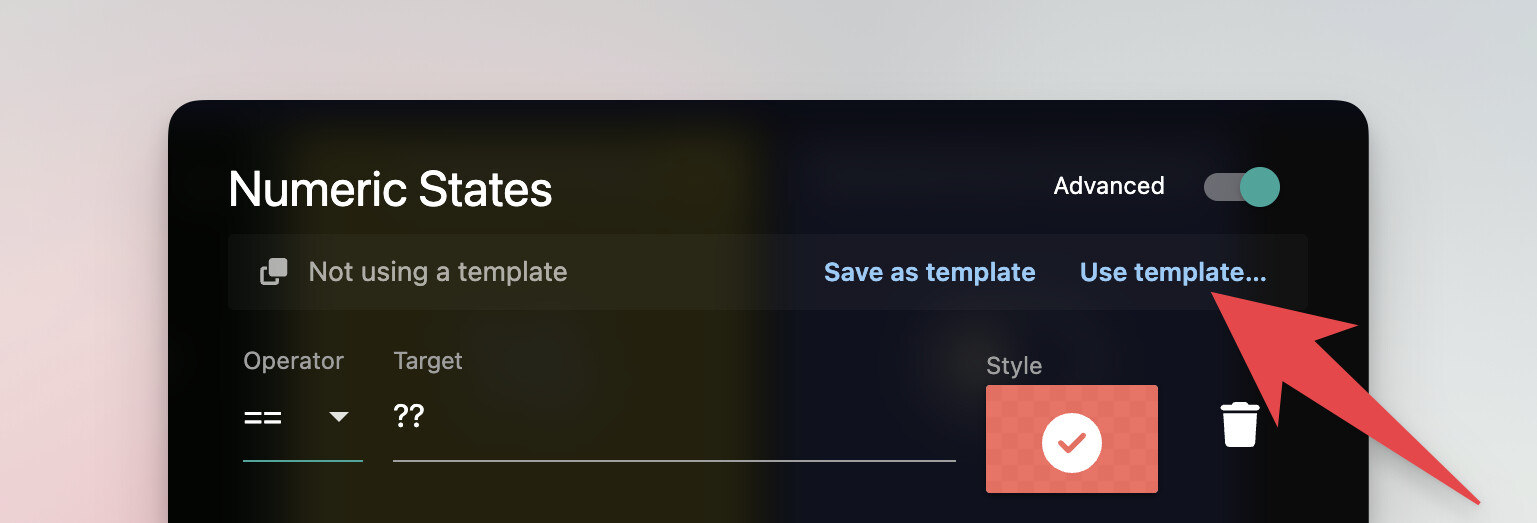
Otherwise, toggle Advanced and choose Use template.
-
Pick your saved template and apply it.
The template is copied into the tile, so the tile still works normally and can be customized locally if needed.
Updating Templates
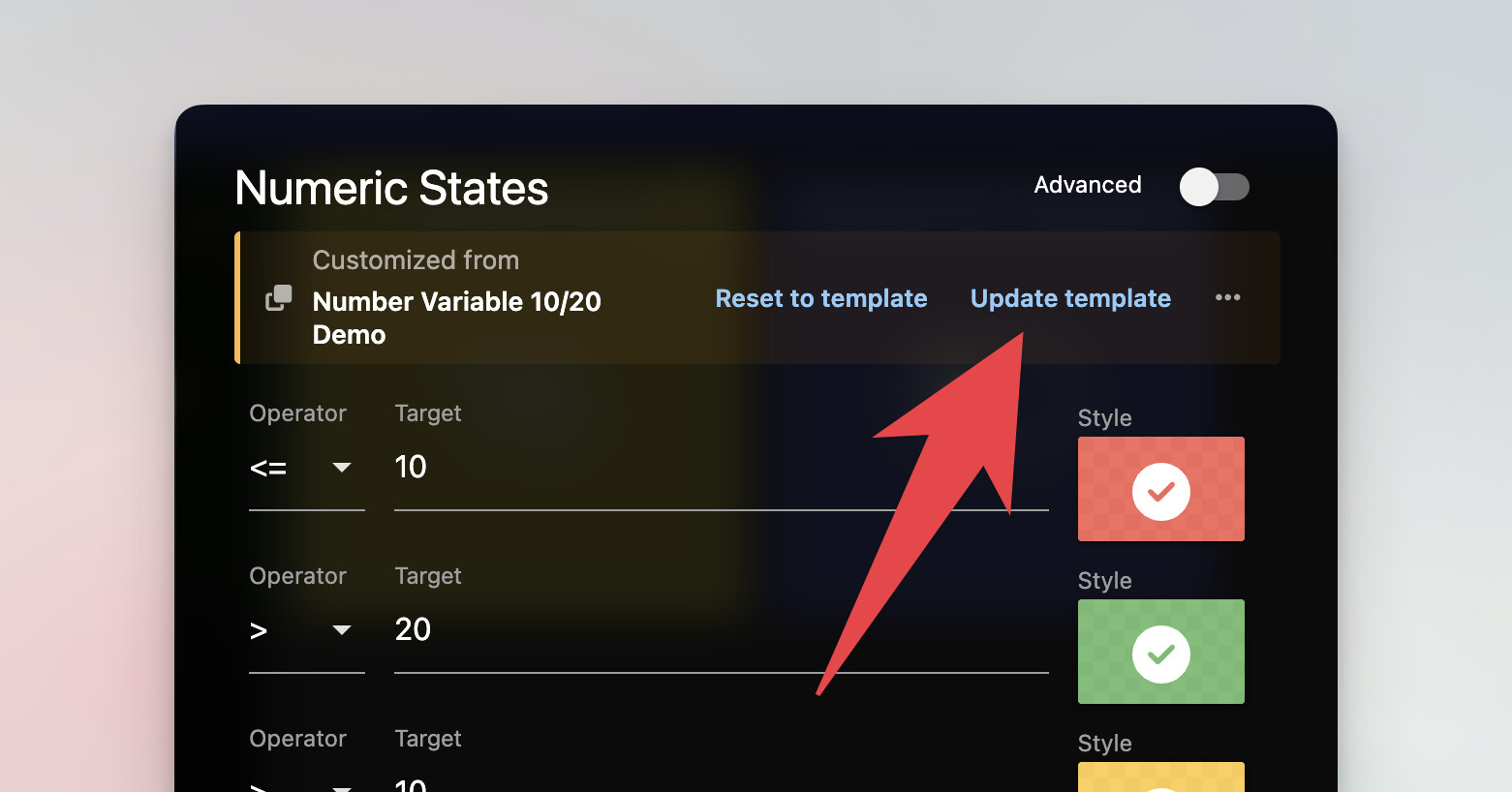
If you later improve a template, SharpTools can help keep linked tiles in sync.
You can update a template from:
-
A tile that is already using that template
-
Manage Resources > State Mappings
When a template is updated, SharpTools will check for other tiles using that template and offer to update the tiles that still match the previous version.
If a tile was customized after applying the template, SharpTools will not overwrite it automatically. Those tiles will be flagged for manual review.
Managing Templates
You can manage your saved templates from:
User Menu > Manage Resources > State Mappings
From there, you can:
-
Create templates
-
Edit existing templates
-
Delete templates
-
See whether templates are being used
For most users, we recommend starting from an existing tile first, saving that mapping as a template, then reusing it elsewhere.
There’s also a Usage tab under Manage Resources > State Mappings. When you select a State Mapping Template, the Usage tab shows where that template is currently being used, including the related dashboards and tiles.
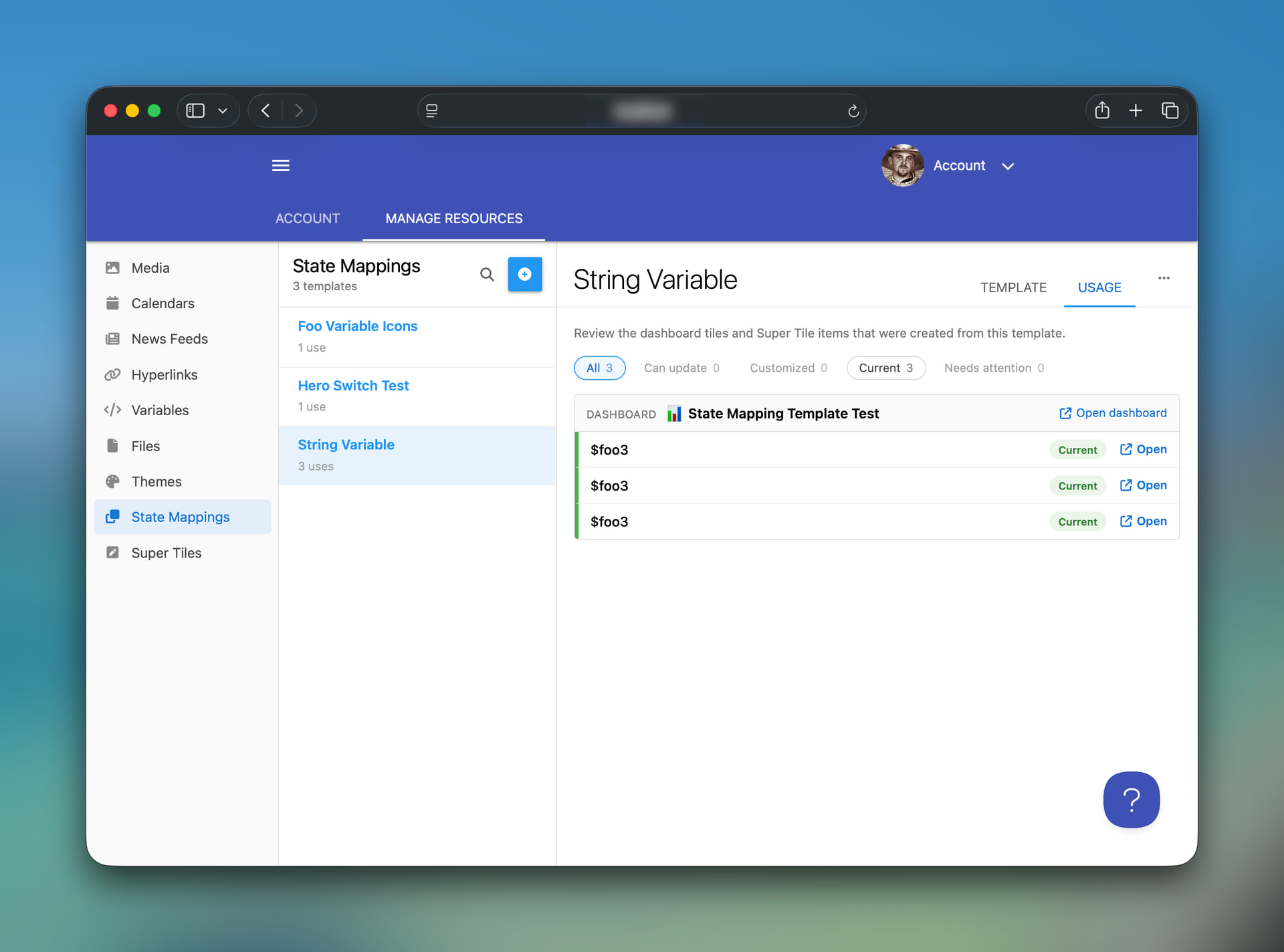
This should make it easier to answer questions like:
-
“Where am I using this template?”
-
“Which tiles were customized after applying it?”
-
“Which dashboards should I review after updating a template?”
The usage list also includes quick links so you can jump directly to the related dashboard for review.
Other Details
A few things to keep in mind:
-
Templates are shown only when they are compatible with the tile you’re editing.
-
Some simple fixed-state tiles, like basic on/off mappings, will not show template options.
-
Deleting a template does not remove mappings already copied into tiles.
-
Tiles customized after applying a template are not automatically overwritten when a template changes.