While you’re there, I’m trying to get the background image to stay still, because if i have more tiles than the screen holds, the background image scrolls too. I want the background image to stay still, seems pretty basic behaviour but i’m having a tough time trying to get it to work. chatgpt doesnt know either..
/* Target the container holding the background image */
#app > .background-image,
#app > .background-image img {
    position: fixed !important;  /* lock it to the viewport */
    top: 0 !important;
    left: 0 !important;
    width: 100% !important;
    height: 100% !important;
    z-index: -999 !important;    /* keep tiles above */
    object-fit: cover !important; /* make it fill the screen nicely */
    transform: none !important;   /* cancel any JS transform */
    pointer-events: none !important; /* make sure it doesn’t block clicks */
}

/* Optional: disable any animation or JS transition */
#app > .background-image,
#app > .background-image img {
    animation: none !important;
    transition: none !important;
}
After Actiontiles being so simple, it’s like I have to go the University to use this dashboard. ChatGPT answered me.
Good — I searched the SharpTools community back through 2021 and beyond and summarised what I found and prepared a practical, working workaround you can apply right now in Chrome on PC (Tampermonkey). First the short conclusions from the forum, then the concrete fix.
What the forum says (quick summary)
SharpTools backgrounds are sized to the entire dashboard height (including off-screen tiles), so the background will scroll with the dashboard by design. SharpTools Community+1
The behaviour has been discussed repeatedly (2020–2023 threads): the default is that the background follows content; there isn’t a guaranteed universal “force fixed” that works for every theme/version simply via CSS. SharpTools Community+1
That means the most reliable approach (if the built-in “Fixed” option in Background Settings is not visible/available for your dashboard) is to bypass the injected background and reapply a fixed background yourself (or use a small script to cancel the JS transforms). Forum threads show users doing the “hide SharpTools image + apply your own fixed background” or using per-dashboard workarounds. SharpTools Community+1
So — yes, the forum shows scrolling backgrounds are the default and that CSS-only fixes are often thwarted by SharpTools’ JS transforms. That explains why your earlier CSS didn’t stick.
Practical, guaranteed workaround (Chrome on PC)
Two reliable options — pick one. The first is CSS-only (if you prefer), the second is a small script injected in the browser which actively undoes SharpTools’ JS and will keep the background fixed.
Option A — CSS bypass (hide SharpTools’ image and apply a fixed background to the page)
If you have a direct URL for the image you want to use, this is simple and often works.
Edit Theme → Custom CSS in SharpTools and paste:
It seems a scrolling background image is default behaviour here, so either I can’t use off screen tiles, or I learn code!
That part is accurate. Dashboard backgrounds are sized to the entire dashboard height including off-screen tiles. So the background image will scroll by design and there’s not currently an option to change that behavior as a simple settings toggle.
(You are welcome to create a Feature Requests as we prioritize improvements based on votes/community interest)
That being said, you can often use Custom CSS to achieve custom looks. Custom CSS is designed as a Power User tool for people who want that extra advanced control – it’s not really a ‘normal’ user type of feature as you alluded to.
I think all that would be needed to accomplish this is a snippet like:
#app > .background-image {
   position: fixed;
}
Note that I haven’t tested this thoroughly and any Custom CSS snippets provided are not officially supported (ie. you might have to tweak them if we change the underlying app structure later).
Thanks very much, that worked, the background image is now fixed, as it was before with Actiontiles. Still amazed I’m the first person that’s asked for this, I would assume this was a default need for everybody, now I can have more tiles off screen, and scroll to them without messing up the background.
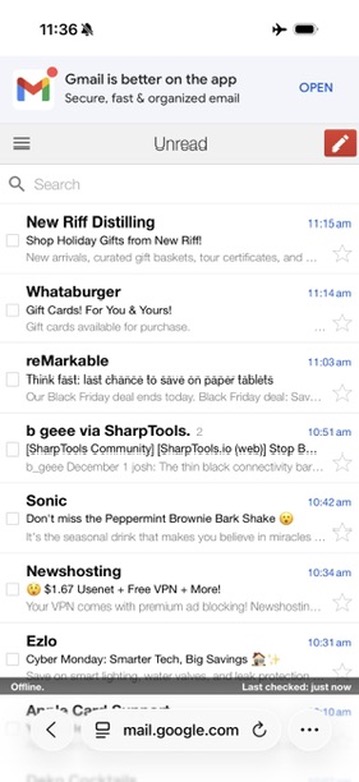
Next thing I’m fighting with is the black banner “Socket Disconnected" and “Socket Connected" each time I open the dashboard, it’s very disorienting and obtrusive. Especially on mobile, not sure why this can’t happen in the background, seeing it every time for just 2 seconds is quite garish and unnecessary. If there’s a permanent disconnection issue I get it.
The thin black connectivity bar at the bottom should only show up with the realtime connection is actually disconnected.
When you first load the web app or even perform a full refresh of the page, you’ll notice that it does not show up unless your browser actually has difficulty getting connected.
But have the page open on a mobile device and the page goes to sleep (eg. page is backgrounded, but not closed), then when you revisit the browser page if it tries to resume from sleep it’s going to have been disconnected long enough that it displays the message as an indication that the data on the page is stale / not up-to-date.
If that’s not what you’re experiencing and you have a series of steps I can follow to reproduce the issue you are seeing, I’m open to hearing more. Otherwise if it’s more that you don’t like the current implementation, submitting Feature Requests as I mentioned above is an option.
It’s not about whether I like it or not, it’s about the whole internet works in one way, and you’ve made a design decision to go another way.
Every website in the world has stale information when you first open it, it connects in the background.
Imagine each time you opened CNN.com, Actiontiles, etc etc there was a black banner at the bottom of the page saying “this page is disconnected" then a second later another black banner “you are now connected", it would drive people insane.
Again, it’s very disconcerting, and disorienting, yet more information grabbing our attention that’s not needed.
I suspect there’s some nuance I’m missing here. I’m happy to engage in friendly discussion… if it’s happening even when you open a brand new browser instance and open SharpTools, I’m interested to better understand it.
I could understand if you revisited a browser tab on a mobile device that still had SharpTools open as that tab would have gone to sleep and really would have needed to show the realtime connection banner to make it clear that the existing data displayed in the browser tab is outdated… but on a brand new tab you should not see the realtime connection banner.
Per my previous comment, if you open SharpTools in a brand new tab, I wouldn’t expect you to see the realtime connection bar.
What type of device and browser are you on where when you open SharpTools for the very first time you are seeing the Socket Connected bar?
I understand the frustration, but there’s a lot of nuance being missed here. SharpTools uses a realtime connection that the vast majority of websites on the internet don’t use.
For the vast majority of the internet, when you load the website the page/content is delivered to your browser all at once. Those sites don’t have realtime status pushed down to your browser as one of their core functionalities. For example, if CNN updates the article, you have to manually refresh the page to see the edits.
SharpTools on the other hand is less like a website and more like a web app where realtime status is a critical part of the design. Many web apps which have realtime status as a core part of their experience or even just as an enrichment do include connectivity status indicators.