I have a tile that monitors my water intake valve. When Smartthings detects moisture, the valve is closed. But the tile is so tiny that, in its normal size, it is impossible to tap the “open” option in the bottom left hand corner. Is there some way to tap the tile and make it, say, three times the size, over the top of the dashboard?
There’s a few options here, but the most direct is probably to use a Super Tile so you can get exactly the visual layout and actions you want.
For example, I created a Super Tile which displays the Open/Closed status of the valve at the top, then the left side of the tile is an icon I can tap to Open the valve and the right side is an icon I can tap to Close the valve.
It’s a bit of learning up front, but most people get comfortable with the basics pretty quick and it’s almost like ‘coloring books for adults’ and some people really enjoy creating Super Tiles.
1 Like
Thanks for this, but I do not have these virtual switches. Can I just use it with my valve?
Yes. My example was with a Valve. It just happened to be a virtual valve since I didn’t have a real valve on that test account.
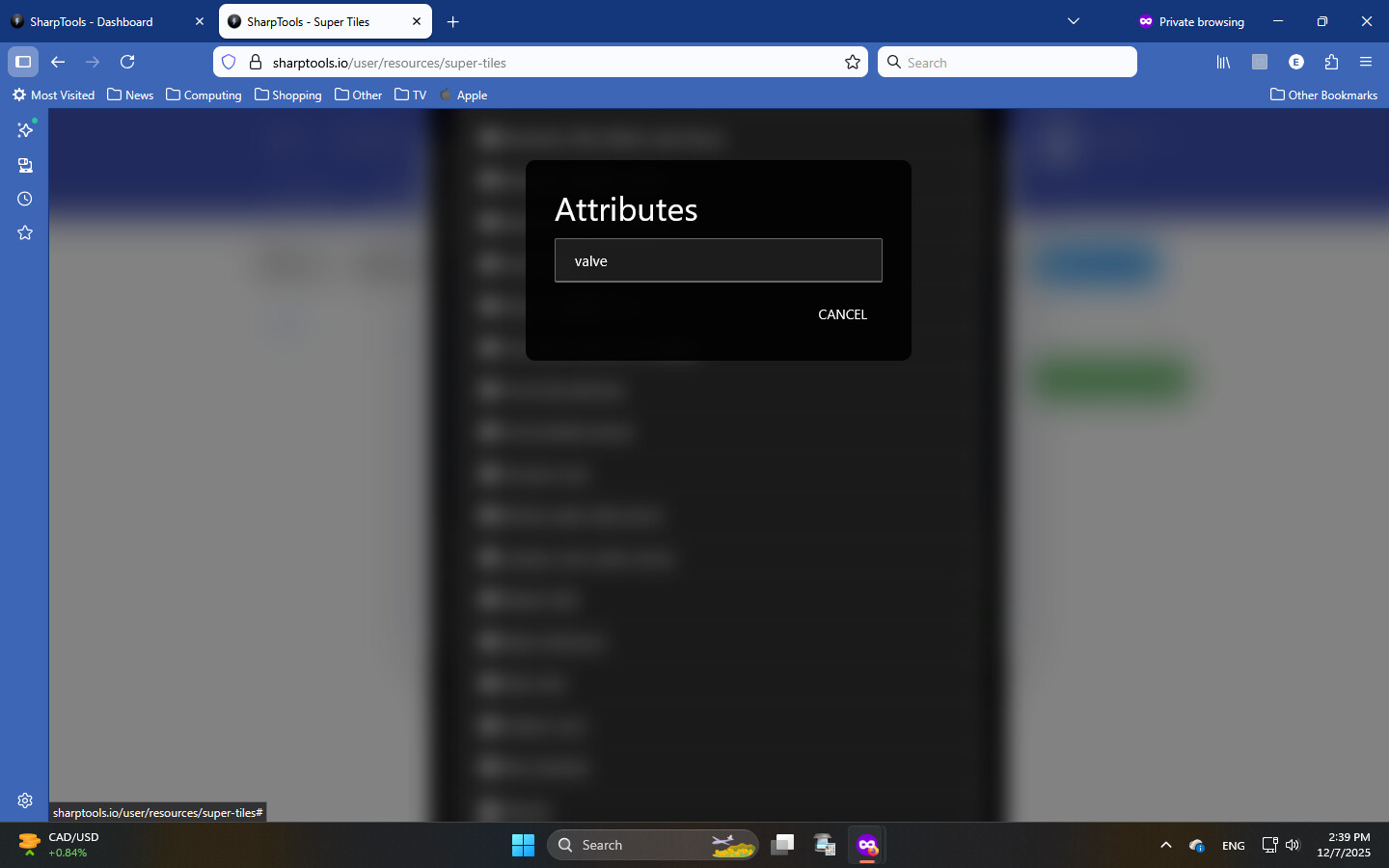
Select valve to display the valve status.
Keep in mind you can tap the  icon in the video player and select a slower playback speed like 0.5x if needed to better follow along with the example I shared.
Not intuitive. I guess I was looking for two options (ok or cancel, not just cancel). Anyway, it is now working, thank you. Two new questions arise: How can i capitalize the first letter in open/closed? Default was lower case and I didn’t find an option to edit. Also, how can i assign a colour (or colours) to the tile? ie., red for closed, green for open? Thanks
Check the video. Around 0:28 in the video, I select the valve option, then I position it and increase the font size, then I edit the settings of that Item to adjust the capitalization.
Basically, select the valve item on the Super Tile and while it’s highlighted, hit the settings cog then adjust the Capitalize setting to ‘Capitalize’
Similar to other tiles. Once you’ve added an instance of your Super Tile to a dashboard, you can edit that tile instance and customize the Style (color).
I am afraid my Supertile doesn’t want to add colours. (red for closed, green for open). Are there instructions somewhere? Have searched the knowledge base and posts by others and I do not see one (although one person found he had to create a theme for the supertile to change colour).
What have you tried?