In Sharptools I have a tile, which shows me the picture of my Arlo camera. This worked without problems. No, I have the problem, that the Tile looks empty:
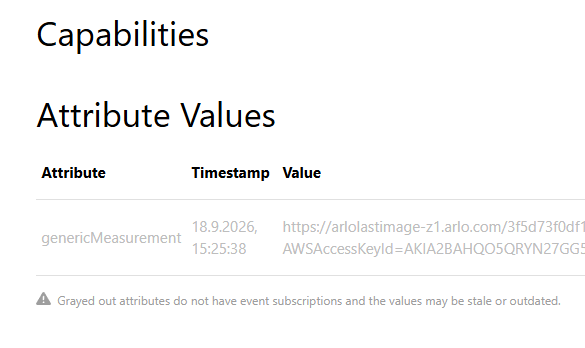
On the attribute view, genericMeasurement is grayed out with the note that it has no event subscription, so SharpTools may be holding a stale URL. Make sure the tile is on a saved dashboard (not only Preview), or re-add the Thing / Super Tile to the dashboard so subscriptions for that attribute get created, then check whether a fresh Arlo URL shows up when Homey updates the thumbnail.
Arlo “last image” links are usually short-lived signed AWS URLs. They often open fine in a new browser tab, but a Media tile can fail if Force Refresh appends cache-busting query params and breaks the signature. If this is a Media tile/resource, try turning Force Refresh off: Media Force Refresh Setting. Background on Media tiles: How do I add video / images to a SharpTools dashboard?
Quick clarifiers so we can narrow it:
Is the dashboard tile a Media tile with that Homey/Arlo URL, or a Thing / Super Tile bound to the Homey device?
When the tile is empty, does a full page refresh right after Homey shows a new thumbnail fix it for a bit, or is it always blank?
@sam I suspect @feron is using the Homey Image Viewer Custom Tile which would explain why the attribute is grayed out - presumably that attribute is not used in a dashboard or rule trigger elsewhere.
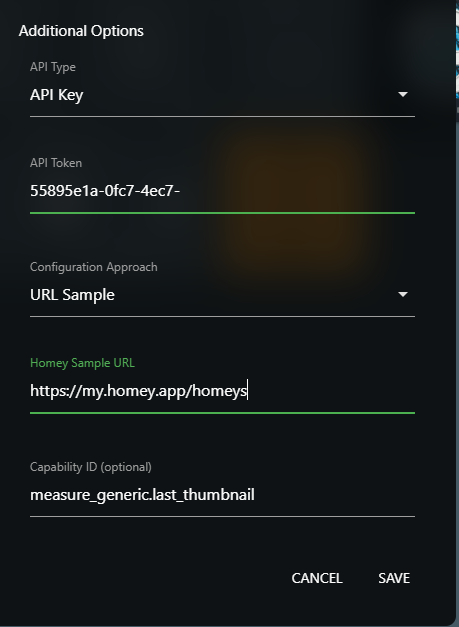
That being said, I put together a Media Image Display Custom Tile that can be pointed directly at a Thing Attribute (or Variable) with an image URL and displays it. This is a newer approach that takes advantage of the existing Homey connection to SharpTools so it can update in realtime and doesn’t require a separate in-browser connection to Homey to poll for image updates like the old custom tile did.
–
Alternatively, if you want to troubleshoot the existing version, if you have a laptop or other computer, can you try opening a dashboard with that Custom Tile and see if there’s any errors reported in the Console of the browser’s Developer Tools? (How to Open Browser Console)
Thank you very much for your support. Yes, I used the “Home Image Viewer Custom Tile”. Now, I tried with the “Media Image Display Custom Tile” you mentioned and with this it’s working.
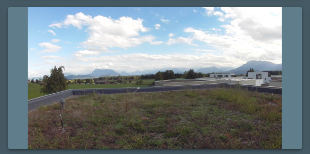
With the Homey Tile, the picture showed the entire tile. But with the Media tile it looks like this and I have left and right spaces. Can I configure the Media Tile, that picture will shown up the whole tile?
Glad the Media Image Display Custom Tile is working.
Those left/right gaps are expected with that tile. It uses object-fit: contain, so it keeps the full image and adds empty space when the tile shape does not match the photo. The older Homey Image Viewer used object-fit: cover, which fills the whole tile and can crop the edges.
There is not a built-in “fill tile” setting on Media Image Display today. Two easy options:
Resize the dashboard tile so its aspect ratio is closer to the camera image. With contain, matching the shape removes the side gaps without cropping.
Edit the Custom Tile CSS so it fills like Homey did. Open the Media Image Display tile in Developer Tools (Custom Tiles), find the #media-image style, and change it from max-width / max-height plus object-fit: contain to: